
Find, enrich and review business records
Map Extract is B2B lead generation software for Windows. Start from keywords and locations, a list of websites or UK company records, and finish with business records you have checked, each field linked to the source it came from.
For agencies, consultants and small B2B teams who build their own prospect lists. Search Google, Bing and Apple Maps, search results, Trustpilot and business websites, match each source to the right business, fill gaps with cited evidence, then export or pass reviewed records to outreach.
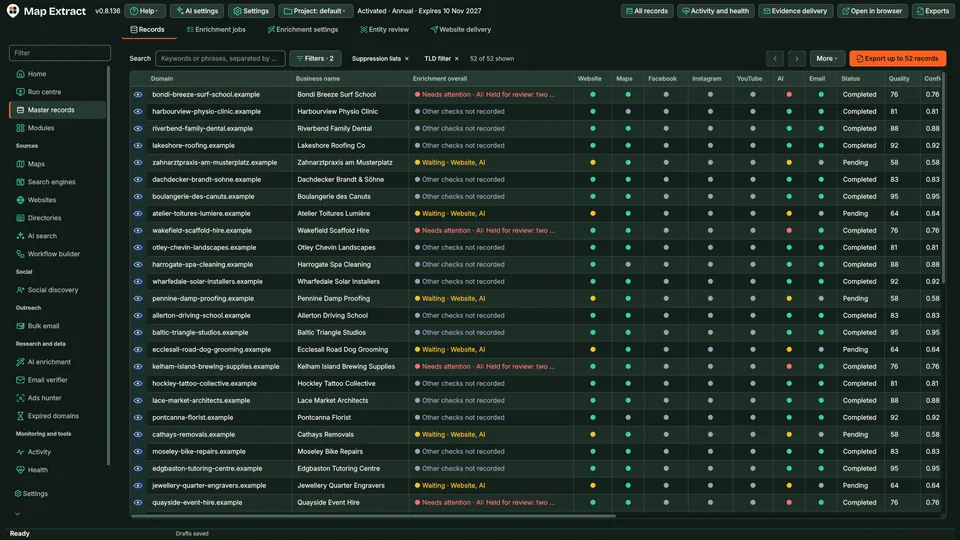
- Windows desktop app34 modules in 9 families
- Projects stored locally on your PCPublic results also upload to Map Extract
- One-off lifetime licence availableOr an annual licence, per Windows machine
What Map Extract does in 30 seconds
Six jobs, one Windows app. Pick the one you need.
- Find businessesSearch maps, search results and Trustpilot by type of business and town.
- Fill in the detailsVisit each website for its published emails, phones and social links.
- Check before you useCheck email addresses and match UK companies to Companies House records.
- Reach out with careSend emails and contact forms you approved, within limits you set.
- Publish your own mediaUpload your own videos, posts and Pins to YouTube, X and Pinterest.
- Spot new opportunitiesTurn UK planning applications into possible jobs for local trades.
Is it for me?
Choose your type of business.
At a glance
The short versionFind businesses, fill in the gaps, check everything before you use it.
What it is
Map Extract is Windows software that finds businesses online, fills in their public details with sources, and lets you check them before use.
What it does
- Finds businesses on maps, search results, Trustpilot and websites
- Adds public emails, phones and social links, with sources
- Holds uncertain records back so you can review them
How it helps your business
Build your own prospect lists instead of buying them or copying details by hand. Each detail shows where it came from, so your team can check a record before calling or writing to anyone.
Plain English: what the terms mean (2 terms)
- Scraper
- Software that reads public web pages and copies the useful details into a table.
- Enrichment
- Adding missing details to a record, such as a phone number or description, from public sources.
See it in action
One business, from a search result to a checked record you can export.
- 1Discover
- 2Match sources
- 3Enrich
- 4Review
- 5Export
Step by step
- Discover: a business is found on a map, in search results or from your list of websites, and captured.
- Match sources: its website and public profiles are attached when they match the business.
- Enrich: missing fields are filled where evidence is available, each with its source.
- Review: quality rules decide what is ready to send; anything uncertain is held for review.
- Export: approved records go out as CSV, XLSX or JSONL, or to a compatible server you connect.
Every pin you can see on the map becomes a row you can check.
Enter a business category and a place. Map Extract runs one search for each pairing, opens every listing, follows the business website for published contacts and saves one record per business, with the source link kept beside each field.
- Find the right businesses. Every keyword is paired with every location, and results from the wrong town are flagged rather than mixed in.
- Attach the right sources. A listing or social profile is attached only when its website domain matches the business, and the reason is stored.
- Keep one record. Matching observations merge into a single business, ready to review and export.
Step by step
- Type a keyword and the towns you want to search.
- Each keyword and town pair becomes its own search job.
- The map results list is read to the end and every place is plotted.
- A place card is opened and read.
- Its details drop into a table row:
gm_business_name,gm_category,gm_phone. - The business website is crawled, and the row gains website, email and social cells where the site shows them.
One application, from finding businesses to working with them.
Start with data extraction. Add reviewed outreach, publishing, reputation or opportunity tools when the work needs them; every released desktop module is included in every licence. Statuses such as Beta, Preview and Coming soon are shown on each module.
- Data extraction13Find businesses on maps, search engines, Trustpilot and websites, then enrich and review each record.
- Social automation4Find social profiles and videos and collect public details. Any action is optional and runs within daily limits.
- Outreach5Reviewed email campaigns, contact form enquiries, journalist replies and PR pitches, checked before anything is sent.
- Automation and profiles3Build scraping workflows, control connected discovery runs and reuse browser accounts.
- Publishing3Upload videos, publish X posts and schedule Pinterest Pins from local media.
- Website testing2Test desktop website journeys and prepare mobile test plans.
- Opportunities2Match planning applications to local trades, and research auction lots with buyer costs.
- Reputation1Find low-rated reviews, assess them against platform policies and manage each removal case.
- Local utilities1Merge PDFs in order and add continuous page numbers.
Discover, match sources, enrich, review, export.
Five stages, each visible in the app. A task finishing is not the same as a record being ready: you decide what is good enough to export.
- 01
Discover
Set keyword and location searches, paste a list of websites or start from UK company records. Choose which sources run, from Google, Bing and Apple Maps to search results, Trustpilot and website crawling.
- 02
Match sources
The website is crawled (Fast, Balanced or Deep) and checked against Maps listings and public Facebook, Instagram and YouTube profiles. Names, domains and location evidence keep unrelated listings and branches out.
- 03
Enrich
Optional AI research fills missing fields where evidence is available, and each accepted value keeps its source link and supporting passage. Unsupported values stay blank.
- 04
Review
Each record shows its sources and its state: captured, enriched, held for review or ready to send. Email addresses carry an inbox purpose and a verification verdict.
- 05
Export
Export approved records as CSV, XLSX or JSONL, with filters for quality, source and date, or hand them to an outreach module with its own checks.
Start with a list of websites and finish with complete business records.
"@type": "LocalBusiness"Step by step
- Paste a list of website domains.
- Each site is crawled at the level you choose: Fast reads the homepage, Balanced puts key pages first, Deep follows links further.
- The contact block is read and copied into email and phone fields.
- The footer and structured business markup add the address and company number.
- A matching Maps listing is found, and it is attached because its website domain matches.
- Eligible public Facebook and Instagram profiles are checked against the site and attached.
A listing is only attached when its website matches the business.
Step by step
- A candidate Maps listing is found for the business.
- Its website domain is compared with the business website. An exact match scores 70.
- Phone, name and address add smaller amounts of evidence.
- The score passes the threshold of 70.
- The listing is attached and the reason is stored in
gm_match_reason. - A second listing at the same address has a different website, so it is rejected.
| Stage | Field | Value | Evidence |
|---|---|---|---|
| Discover | gm_business_name | Canal Street Coffee | Google Maps listing |
| Match sources | site_domain | canal-street-coffee.example | Listing website domain matches |
| Enrich | description (AI) | Coffee shop with office catering | canal-street-coffee.example/about |
| Review | email_1 | hello@canal-street-coffee.example | Enquiries inbox, mailbox checked |
| Export | record state | Ready to send | CSV, XLSX or JSONL |
Illustrative example. The business is fictional and its domain ends in .example.
Interactive example: choose a stage to see it run.
Watch Map Extract build a business list across your selected sources
Add keywords and locations, choose your sources and set the job order and limits. The software runs the configured searches, extracts available business details, visits linked websites and social profiles, and joins matching details in your local database. Then start an automated outreach campaign using those contacts.
Interactive example. Source availability, source order, batch sizes and configured limits determine the actual run. Organic search jobs retain their own search filters.
Control the accounts, data and pace
Use the right signed-in account for the job.
Each saved identity keeps its platform sessions and cookies. Public-page warm-up is available for browser profiles. Select that identity in a supported module; complete-profile rotation switches at supported handover points.
- 1Choose identity
- 2Load saved session
- 3Run selected module
AI that shows its working.
AI is optional and works with the provider you choose. When it adds something to a record, you can see where it came from. AI enrichment, Layer 3, English translations, the email verifier and Companies House matching are part of the current release.
AI enrichment with evidence
Fill a missing business name, category, location, service description or public contact, for eligible fields and where evidence is available. AI reads the live website and relevant public sources, or the pages already captured. A value is saved only with its source URL and a supporting passage; an unsupported answer stays blank and an inconclusive one is held for review.
Layer 3 deep extraction
Go beyond name and phone with facts the website itself states, such as equipment models, facilities, brands stocked or published warranty terms. At least two separate AI reviewers read the captured pages, and each fact is kept with the page URL and an exact quotation. Layer 3 never edits core fields and leaves out personal data.
Automatic English translations
Read eligible foreign-language descriptions and services in English while the original wording and its source stay available. URLs, codes, identifiers and units keep their original form, and a translation is tied to the exact text it came from. Coverage varies by field and record.
Email verifier
Inbox purpose and verification are kept apart. Purpose separates general, sales, bookings and support addresses from privacy, abuse, unsubscribe and no-reply ones. Verification checks syntax and mail routing, and mailbox signals where you configure them. Catch-all and inconclusive results get their own labels, and a verdict describes the checks run, not guaranteed delivery.
Companies House matching
A UK workflow that runs in either direction. Start from a website and match a company number or name to the register, or start from registry records and check candidate websites before they go to enrichment. Registered office and status are kept apart from the trading address, and unmatched companies stay in staging.
AI answers come with the sentence that proves them, or they are not saved.
Harbourline Joinery is a family workshop on Quay Yard. We design and fit bespoke kitchens and staircases for homes across Bristol. Visit the showroom by appointment.
“We design and fit bespoke kitchens and staircases for homes across Bristol.”supported
Step by step
- A record has a blank description.
- AI reads the saved page, or researches the live site, depending on the route you configure.
- It proposes a value with its source URL and the exact passage it relied on.
- The value is checked against that passage before the field is written.
- A suggestion with no supporting passage is not saved, and the field stays blank.
Go beyond name and phone with facts the website itself states.
“Warranty: 3 years on all fitted kitchens.”
Step by step
- A page from the business website has been captured.
- Layer 3 compares it with the existing record, so standard fields are not repeated.
- Two separate AI reviewers read the page independently.
- Both find the same business fact: a published warranty term.
- The fact is saved with the exact page URL and the quoted passage that supports it.
| Type | Field | Value | Source and passage |
|---|---|---|---|
| Filled field | category | Commercial bakery equipment supplier | ovenworks.example/about: "We supply and service commercial ovens" |
| Layer 3 fact | Warranty duration | 3 years | ovenworks.example/warranty: "Warranty: 3 years" |
| Translation | description (English) | Family bakery since 1952 | Original: "Familienbäckerei seit 1952" |
Illustrative example with fictional businesses. Domains end in .example.
Your desktop app, in a browser tab, on your own machine.
Open Map Extract in your browser to navigate modules and settings, browse business records, and monitor and control runs through a responsive interface connected to the running Windows app.
Step by step
- Map Extract is running on your Windows PC.
- Click Open in browser.
- The same records and run status open in a browser tab on the same PC.
- Pause the run from the browser; the desktop app shows the same change, because both use one running app.
- File dialogs and saved credentials still open in the desktop app: Return to Desktop.
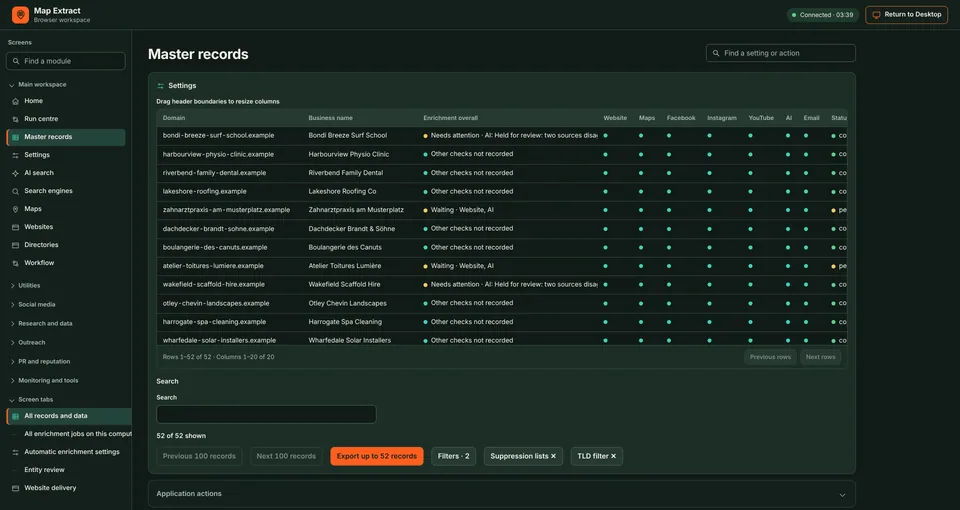
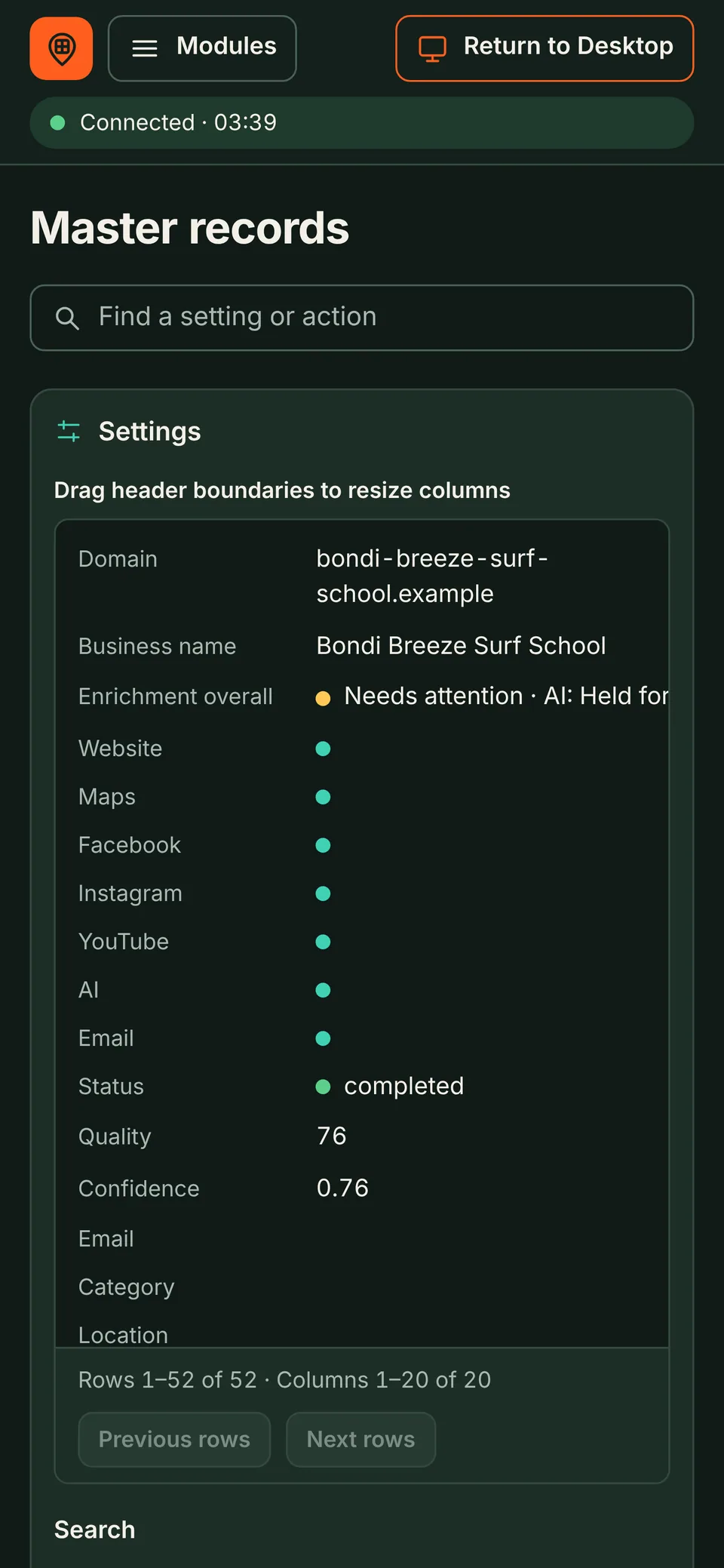
Same app, same data
Click Open in browser in the desktop app and switch back with Return to Desktop. Both views use the same running application and the same project data, with searchable navigation, real forms and record tables. Browser Workspace is part of the current release.
Local, not hosted
The workspace is served only on your own PC, on a random local port protected by a token. The desktop app must be running. It is not a hosted dashboard or a cloud account.
Some controls stay on the desktop
Saving credentials, Windows file dialogs, signing in to external accounts and a few custom controls open in the desktop app, which handles them with native Windows controls.
Real column names, ready for a spreadsheet or CRM.
These are field names from the CSV export. Each source fills the fields it publishes; nothing is invented to fill a gap. For UK businesses, a company number or name found on the website can be matched to Companies House records, with registered office and status kept apart from the trading address.
Take your checked records out in the format your tools use.
Step by step
- Choose filters: quality, source and date.
- Records held for review stay out of a quality export, and can be exported separately.
- Pick one or more formats: CSV, XLSX, JSONL or email lists as TXT.
- Several formats at once are zipped into your output folder.
| gm_business_name | gm_category | gm_phone_e164 | gm_domain | gm_city | email_1 |
|---|---|---|---|---|---|
| Canal Street Coffee | Coffee shop | +441632960201 | canal-street-coffee.example | Manchester | hello@canal-street-coffee.example |
| Northern Roast | Coffee shop | +441632960202 | northern-roast.example | Manchester | hello@northern-roast.example |
| Ancoats Coffee House | Coffee shop | +441632960203 | ancoats-coffee-house.example | Manchester | hello@ancoats-coffee-house.example |
- 53 fieldsGoogle Maps Scraper
- 96 fieldsWebsite Data Extractor
- 42 fieldsBusiness Email Extractor
- 35 fieldsBusiness Directory Scraper
Sample rows use made up businesses and .example domains.
Simple licences, one Windows machine each.
Every licence includes all current modules. Prices are in pounds sterling and paid in cryptocurrency.
All released desktop modules and future modules, with updates during your subscription.
Includes 12 months of updates. Keep using your eligible installed version after that.
Extend update access for an existing lifetime licence.
Nothing is sent until you approve it, and a recipient without recorded permission is held.
Step by step
- You review the recipients of a campaign draft. Nothing is sent at this stage.
- Addresses on your suppression list are greyed out and skipped.
- The message preview must contain an opt-out line before it can be used.
- Before sending, each message is checked again: suppression, the address check verdict and a recorded marketing permission.
- A recipient with no recorded permission is held as Needs review, not sent.
- Messages that pass every check join the queue.
The campaign stops itself if bounces rise.
Step by step
- Approved messages are sent from your own mailbox within the hourly and daily caps you set.
- Replies and bounces are read back from your inbox.
- The bounce rate climbs towards the threshold (5% by default).
- At the threshold the campaign pauses itself, and nothing more is sent until you act.
Projects are stored locally on your Windows PC. Public business and social results the app collects are uploaded automatically to Map Extract's servers while it is licensed and running; see the Privacy Notice.
Questions about Map Extract
What does Map Extract actually do?
It finds businesses from the sources you choose (maps, search results, Trustpilot, websites or UK company records), checks that each source belongs to the same business, fills gaps with evidence where it is available, and lets you review every record before you export it or use it in outreach.
How is this different from buying a business list?
You run the searches yourself, when you need them, and every field keeps the source it came from. You choose the keywords, locations, sources and fields, and you can revisit websites later to refresh your records. A published email address still needs checking before any campaign.
Do I need coding skills or my own accounts?
No coding. Map Extract is a Windows application with forms, project controls and live results. Collection and export need only an internet connection. You add accounts only for the features you use: an AI provider for AI enrichment, your own SMTP mailbox for email, signed-in browser profiles for social modules, and optional proxies.
Where are my projects stored, and what is shared?
Projects are stored locally on your Windows PC, in SQLite databases you can back up. Runs send requests to the sources you enable, and AI prompts go to the provider you choose. Public business and social results the app collects are uploaded automatically to Map Extract's servers while it is licensed and running; the Privacy Notice explains what is uploaded and why.
Can I use the records for outreach?
Only where the law allows. Bulk Email Sender holds each recipient until a permission record exists, requires opt-out wording in every message and pauses a campaign if bounces reach 5%. Contact form and social actions have their own limits. Read the responsible use and anti-spam policies first.
Do I need permission from the platforms I use?
Third-party platforms may restrict data collection or automated actions. Before running a workflow, check the platform's rules and make sure you have permission for the actions you configure. You remain responsible for how you use Map Extract, as the Terms of Sale and Use and the Responsible Use Policy explain.
What happens when a source is slow or blocked?
Retries are bounded, cooldowns follow the source's own signals and blocked, parked or dead sites are recorded and set aside rather than saved as data. Results depend on each source and its availability at the time.
How many computers does a licence cover?
Each licence covers one Windows machine. You can buy licences for several PCs in one order, and you can release a PC to move the licence to another one.
How do I pay?
Checkout uses cryptocurrency through NOWPayments, with prices set in pounds sterling. There is no card payment. Your licence and download are delivered on a private order page once payment is confirmed.
Start with one search you can check.
Pick a category and a town you know well. See what Map Extract finds, compare it with what you know, then choose a licence.