
Automation and profiles · Available
Scraping run monitor: start, pause and stop prepared runs
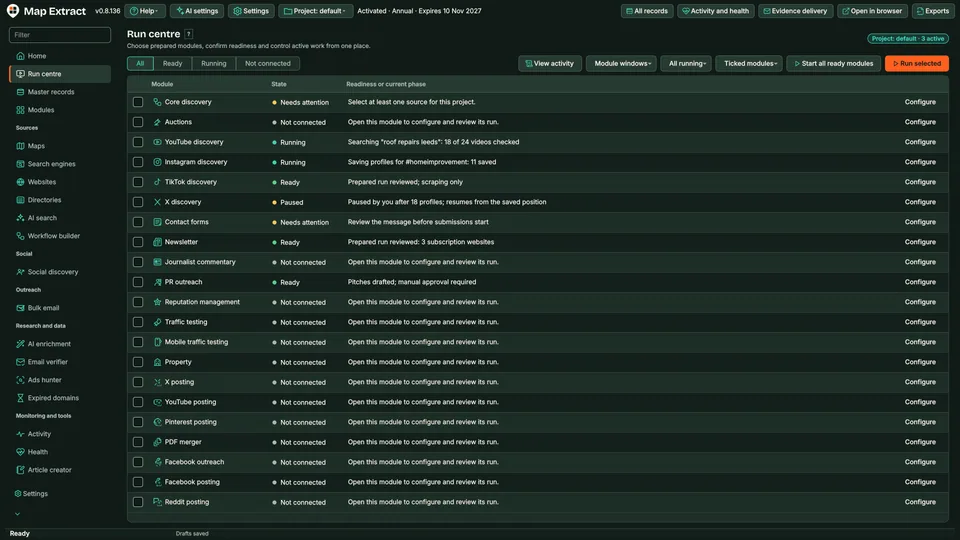
See the connected module instances running in your project and start, resume, pause or stop them from one screen. Prepare a combined start and check the exact configuration it will use before you run it.
- Windows desktop app
- Data saved in your local project
- Control surface
At a glance: Run Centre
The short versionOne screen to start, pause and stop your runs.
What it is
A control panel showing the modules running in your project, where you can start, pause, resume or stop them.
What it does
- Shows connected module instances and their status
- Starts, pauses, resumes or stops them from one screen
- Shows the exact settings before a combined start
How it helps your business
Keeps longer jobs under control from one place, so you can pause work, check what will run, and avoid surprises. It controls connected discovery instances in the current project, not every module.
Plain English: what the terms mean (2 terms)
- Run
- One session of the software doing its work, such as a batch of searches.
- Instance
- One copy of a module that is open and running.
See it in action
See your running modules and pause or stop them from one screen.
Run centre · current project
Google Maps scraperplumbers, YorkRunningPausedRunningPause
Email verifierproject listPausedRunning
Instagram scrapernot startedIdle
Prepare combined startWill run exactlyGoogle Maps scraper: plumbers, YorkEmail verifier: project listConfirm started
Later attemptPreparation expired: prepare again
Illustrative project. Commands go to module instances on your own PC. Motion is reduced, so the finished scene is shown.
Step by step
- The run centre lists the module instances running in the current project, with their status.
- Pause one; its status changes to Paused.
- Prepare combined start shows a summary of the exact configuration that will run.
- Confirm, and the prepared instances switch to Running.
- If a preparation has expired, you are asked to prepare again.
What you get
One view of the connected runs in your project, with start, pause, stop and show or hide browser controls.
Control your connected discovery runs in one place
- Configure each connected module firstOpen the module and save the intended project, account and campaign settings.
- Prepare a combined runUse the module’s preparation action so the Run Centre can identify the ready instance.
- Select the prepared instancesCheck the module and project before issuing the supported start or stop controls.
- Watch module status in one placeInspect readiness, state and the last reported reason. Only connected modules report into this view.
Field names9 field names
Real column names from the module schema. A field is filled only when its source publishes the value.
Run Centre record
idmoduleprojectpidseenstatereadyreasonrevision
How it works
You provide Prepared and connected social discovery modules.
You get Central control of supported discovery runs without reopening every module.
Choose prepared discovery instances
Start the selected run
Inspect progress and saved records
Pause or stop the connected instances
Check logs before restarting interrupted work
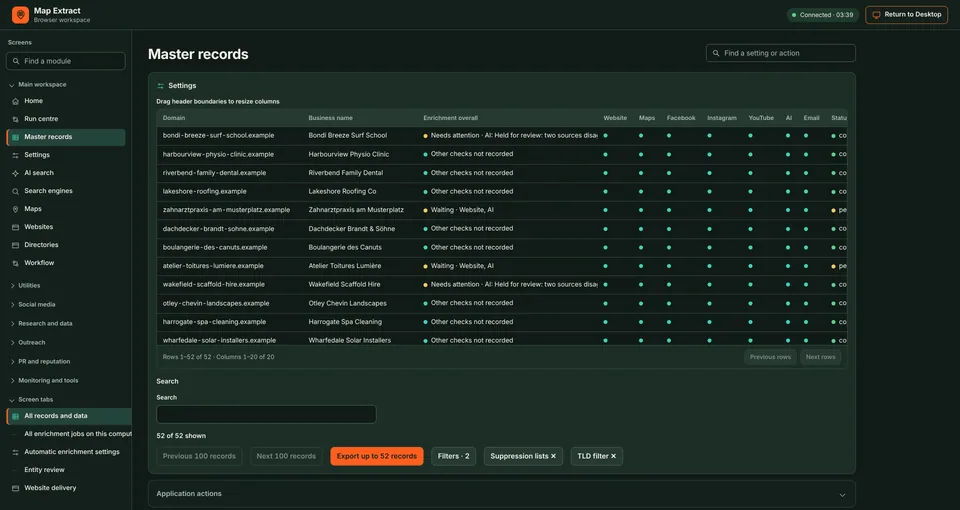
Your desktop app, in a browser tab, on your own machine.
Recordsrunning paused
Harbourline Joineryready to send
Copper Kettle Cafeenriched
Northgate Dentalheld for review
Recordsrunning paused
Harbourline Joineryready to send
Copper Kettle Cafeenriched
Northgate Dentalheld for review
Pause runReturn to Desktop
Illustrative view. The desktop app must be running; the workspace is local to your PC. Motion is reduced, so the finished scene is shown.
Step by step
- Map Extract is running on your Windows PC.
- Click Open in browser.
- The same records and run status open in a browser tab on the same PC.
- Pause the run from the browser; the desktop app shows the same change, because both use one running app.
- File dialogs and saved credentials still open in the desktop app: Return to Desktop.
Open the same screens in your browser.
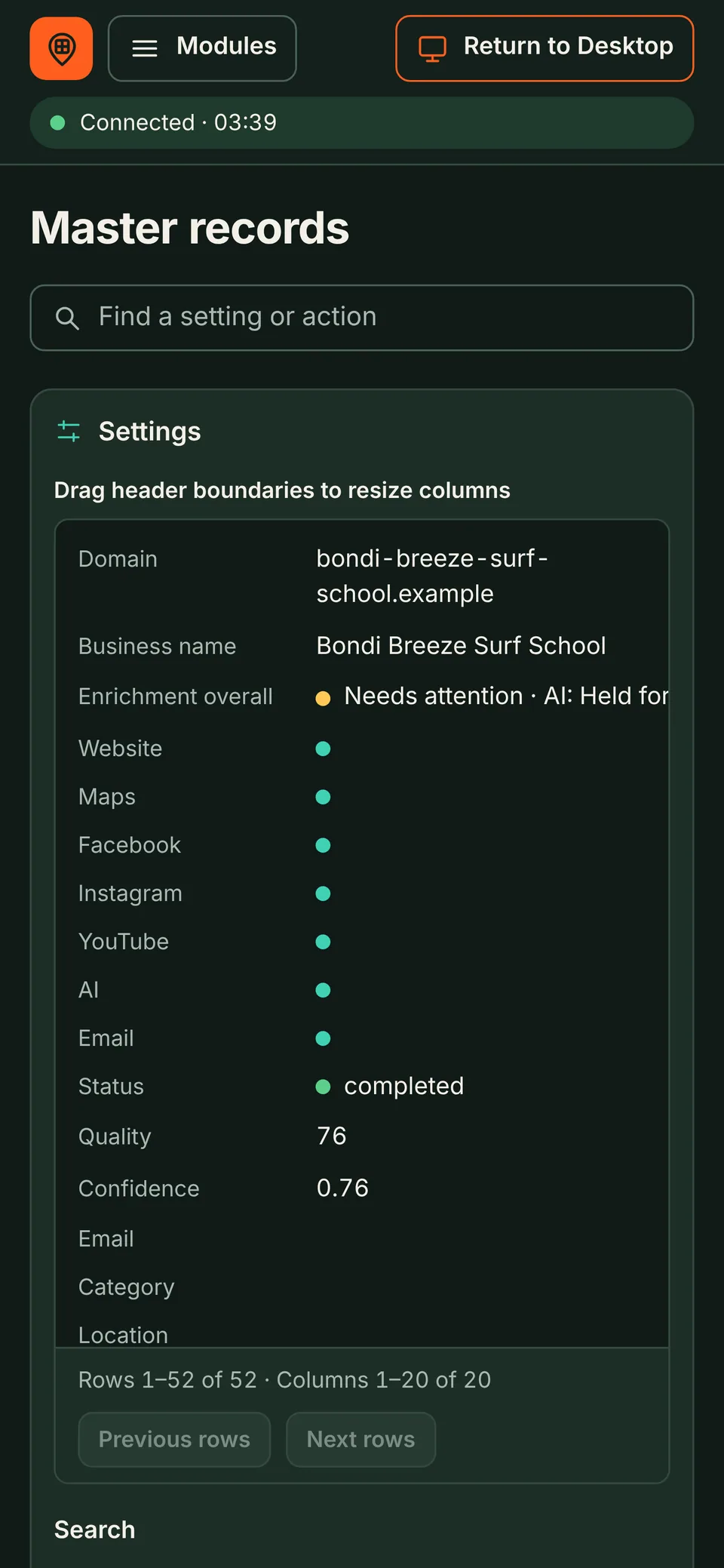
Browser Workspace shows the running desktop app in a browser tab on your own PC. Run centre is listed under Main workspace, and changes you make there apply to the running app.
SEE THE TASK, SETTINGS AND RESULT
Run Centre: follow a worked example
⌕coffee shops Manchester
Data extractedBusiness · Phone · WebsiteSaved to local database
Automated workflow. Playing it does not open accounts, send email, publish files or run tests.
Where Run Centre fits
Discover Instagram prospects
Build a relevant profile shortlist and prepare supported messages or engagement.
Research TikTok creators
Find creator profiles and evaluate their public business relevance.
Keep client accounts separate
Reuse authorised browser sessions while keeping account identities distinct.
Safeguards and responsible use
Settings you control
- Module setup
- Configure the account, project and inputs in each connected module.
- Prepare instances
- Prepare the connected instances before starting a combined run.
- Selected modules
- Choose which prepared instances to start or stop.
Good to know
- Run Centre controls connected discovery instances in the current project, not every module.
- A prepared combined start expires after a while, so prepare again before a later start. Commands that are not picked up also expire.
- Core discovery is started in the main app. Separate apps keep their own controls.
Use Map Extract lawfully and only for a legitimate purpose. Read the responsible use policy. Projects are stored locally on your Windows PC. Public business and social results the app collects are uploaded automatically to Map Extract's servers while it is licensed and running, as the Privacy Notice explains.
Run Centre FAQ
Does a prepared start expire?
Yes. Preparation shows the exact configuration that will run. If it has expired, prepare again so the settings are current. The Run Centre tutorial gives the current timing.
Does Run Centre include the uploaders?
The documented shared controls cover connected Instagram, TikTok, X and YouTube discovery instances. Uploaders retain their own publishing controls.
Will it configure the campaigns for me?
No. It controls prepared instances. Set targeting, identities and limits in each module first.
Does this merge all social results automatically?
The control screen is not a universal data-merging service. Inspect the results and storage in the individual modules.
Can I close the computer and leave these runs working?
These are local desktop processes. Keep the required computer, modules and sessions running.
Is a running process the same as a successful campaign?
No. Run Centre shows process state. Inspect the module’s results and logs to confirm which records or actions completed.
Can I use it to check a stopped module?
Use its recorded state and reason to identify which module needs attention, then open that module’s own progress view for the failed job details.
Guides
Related guides
'Our Systems Have Detected Unusual Traffic': Why and What to Do
Why Google shows 'Our systems have detected unusual traffic from your computer network', what causes it, and the right response when you run lead collection.
Parked Domains and Dead Sites in Lead Lists: Detect Them
Detect parked, expired, redirected and dead websites in a lead list with DNS, HTTP and content checks, and why web designers should treat them as leads.
Scraper Blocked? Troubleshooting by Symptom
Why your scraper is blocked and what to do: CAPTCHAs, 403, 429, empty pages, login walls and timeouts, with polite fixes and clear signs it is time to stop.
Start with one small run you can check
Read the Run Centre guide, check the free demo status and the system requirements, then choose a licence for your Windows PC.