
How to automate contact form submissions
Follow the complete setup and run process for this module. You will start with business websites, approved message content and sending limits, work through each control in order and finish with a submission log tied to each business and website.
Step 1: Campaign
Enter target URLs and leave submissions disabled for discovery; inspect the saved scope.
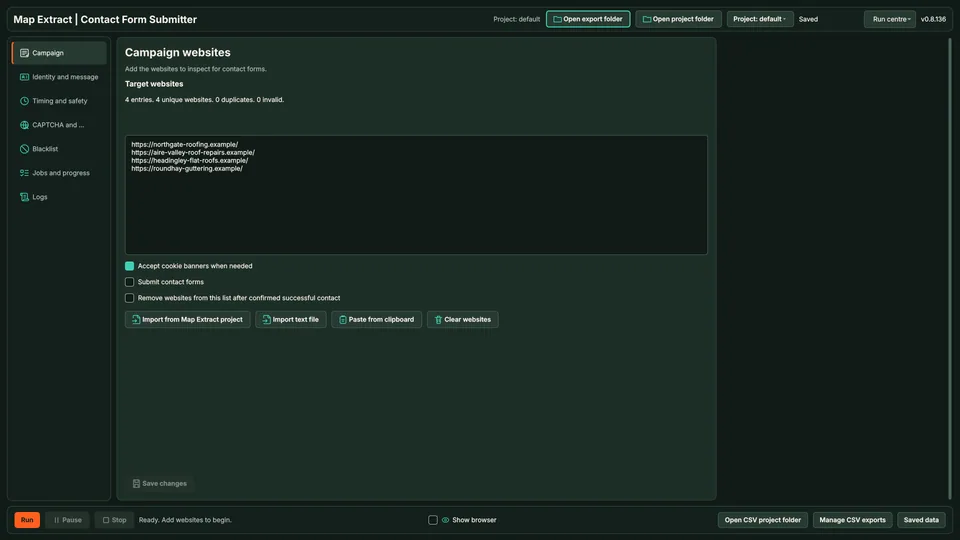
Campaign defines the target list and submission switch. Step 2: Identity and message
Enter sender details and review the full message; generated text is still a draft.
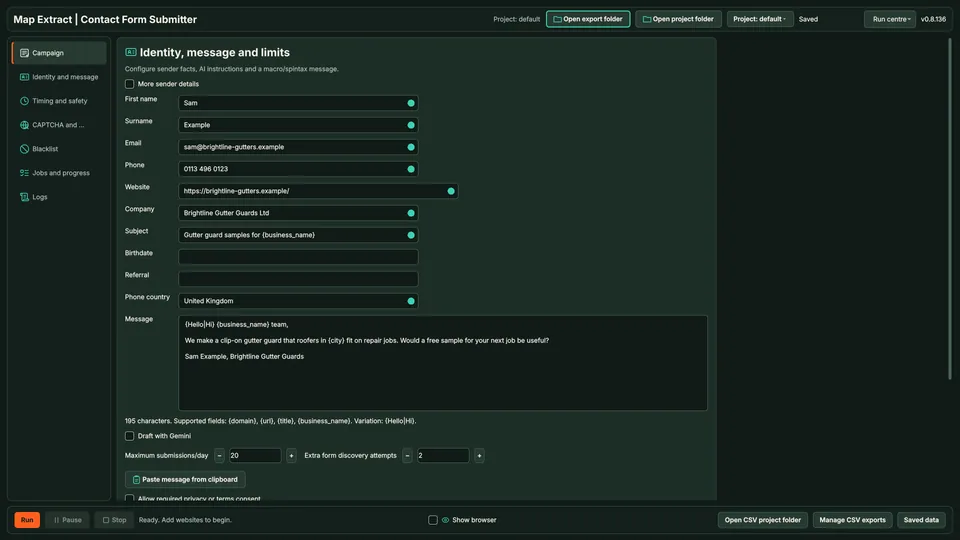
Review the exact sender identity and message. Step 3: Timing and safety
Set the website budget and submission cap; keep retries bounded.
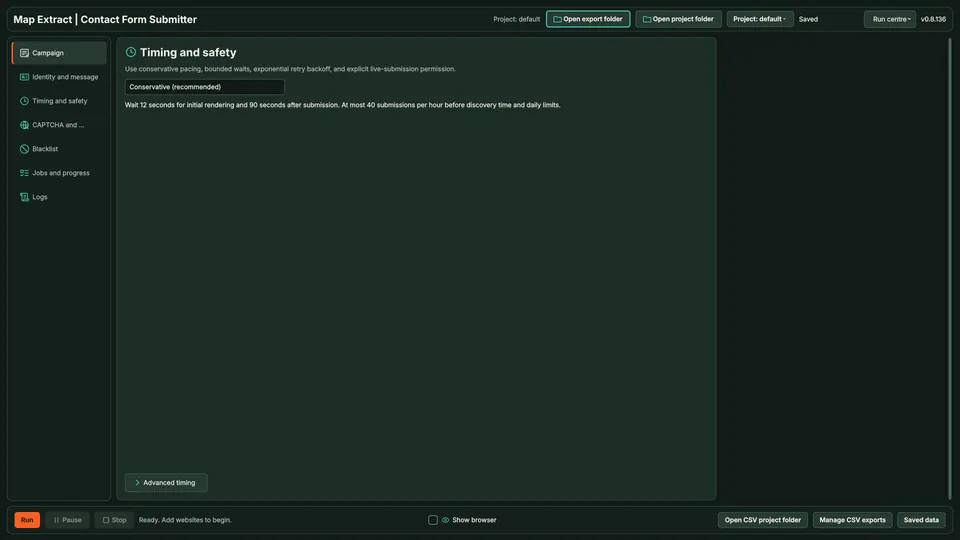
Timing and safety bounds discovery and submissions. Step 4: Challenges and proxies
Check required connections; a CAPTCHA or blocked challenge is set aside for manual handling.
Step 5: Blacklist
Exclude domains that must not be contacted; save before running.
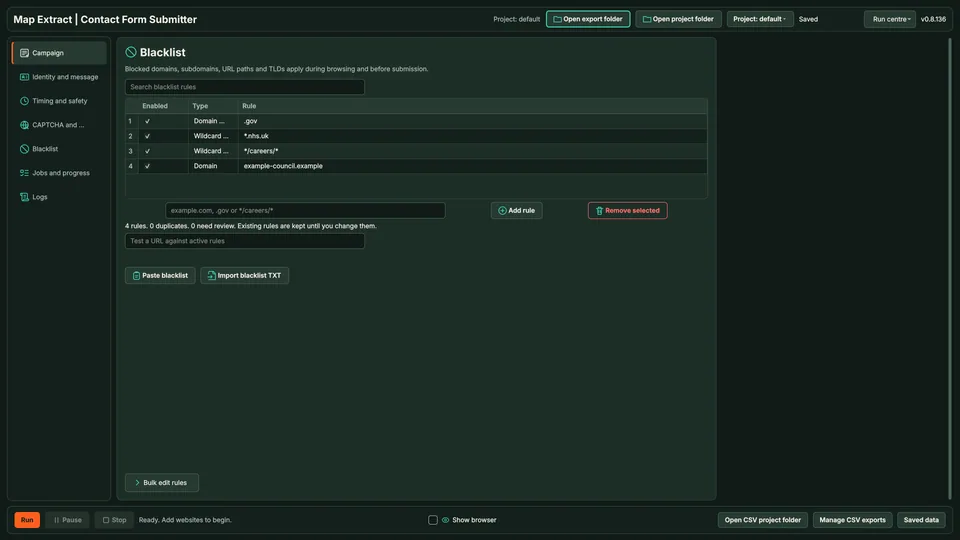
Blacklist exclusions protect inappropriate destinations. Step 6: Jobs and progress
Inspect discovered forms and outcomes before enabling a small approved submission run.
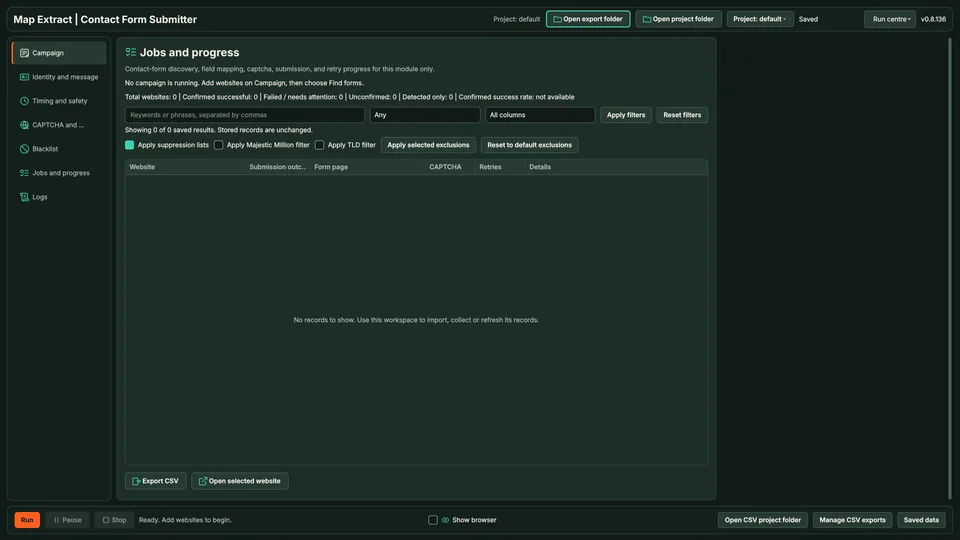
Progress records the observed outcome.
Check the result
A website-by-website record of submission results and forms that could not be completed.
- Live submission is off by default.
- The email permission check does not cover contact forms; check recipients against your suppression list yourself.
- A found form does not mean the site will accept a submission.
Read the responsible use guidance and the anti-spam policy before you run this module on real data.
Troubleshooting
- The expected input or account is missing
- Recheck the prerequisites: Project; Authorised target list; Sender details and reviewed content; Provider configuration only where needed.
- The output is incomplete or unavailable
- Form detection does not mean that a site accepts a submission.
- The job was interrupted
- Pause or stop the supported local job controls, then inspect its recorded state. Resolve a blocked account or source before restarting. Check the destination before repeating any action whose outcome is uncertain.
Questions
What setup does Contact Form Discovery and Submission Automation require?
Business website URLs, sender details and your message. Project. Authorised target list. Sender details and reviewed content. Provider configuration only where needed.
What does contact form automation produce?
Website enquiries sent through supported forms, with failures and uncertain submissions identified.
What should I check before using Contact Form Discovery and Submission Automation?
Form detection does not mean that a site accepts a submission.
Next steps
Follow along in the free demo
Install Map Extract on Windows and work through these steps with a small test project.