
How to bulk upload pins to Pinterest boards
Follow the complete setup and run process for this module. You will start with media files, profile access, boards, destination URLs and publishing rules, work through each control in order and finish with a scheduled pin queue with board, link and publication records.
Step 1: Add local media
Select image and video folders and use Scan folders to add media to the list. Load supported CSV or JSON metadata where available.
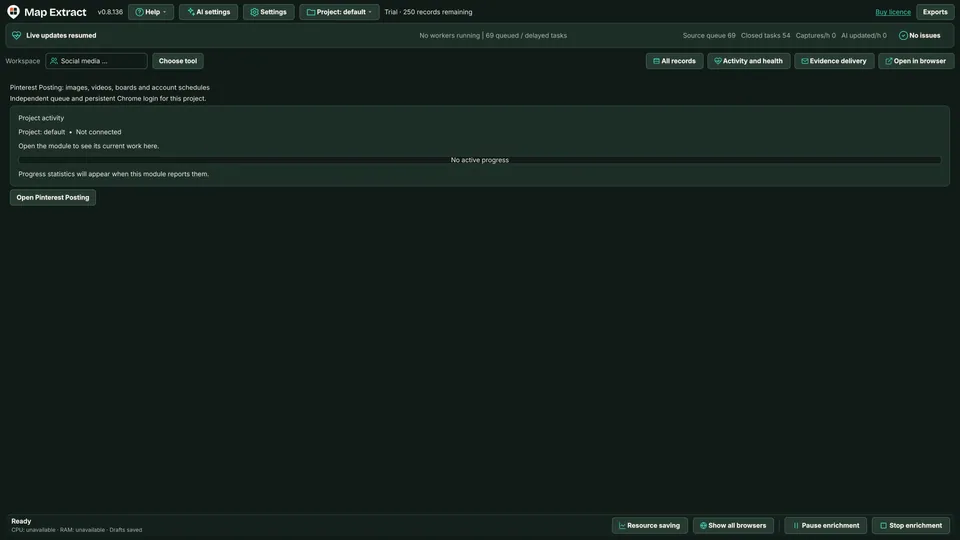
Main window launcher: Pinterest Posting for images, videos, boards and account schedules, with an independent queue and persistent Chrome login for this project. Step 2: Edit the Pin
Review the title, description, destination URL and optional alt text. Select the board and save the selected metadata.
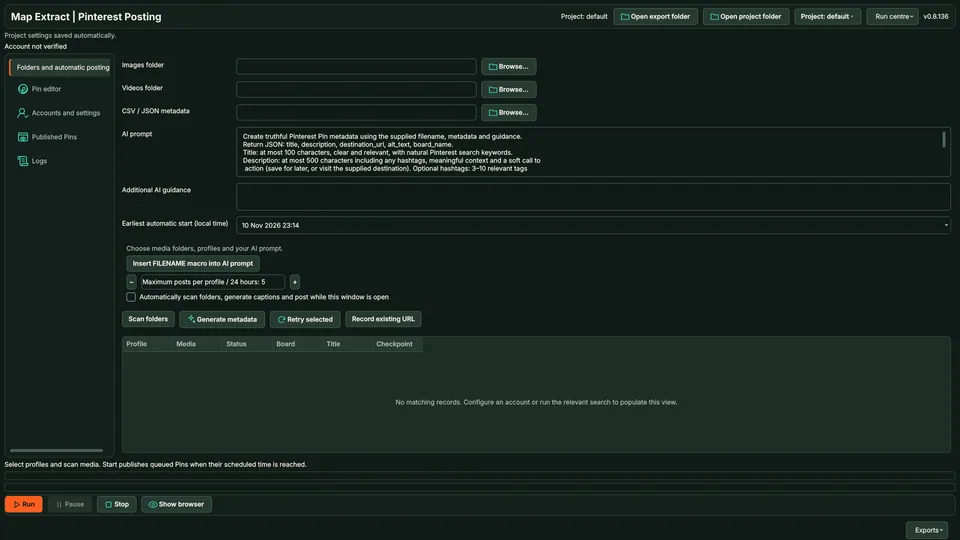
Media queue: Images folder, Videos folder, CSV / JSON metadata, the AI prompt and Earliest automatic start. Scan folders, Generate metadata, Retry selected and Record existing URL. Profile, Media, Status, Board, Title and Checkpoint: No matching records. Account not verified. Step 3: Verify the Pinterest account
Select the profiles to use. Open login, verify the account and refresh its boards before assigning destinations.
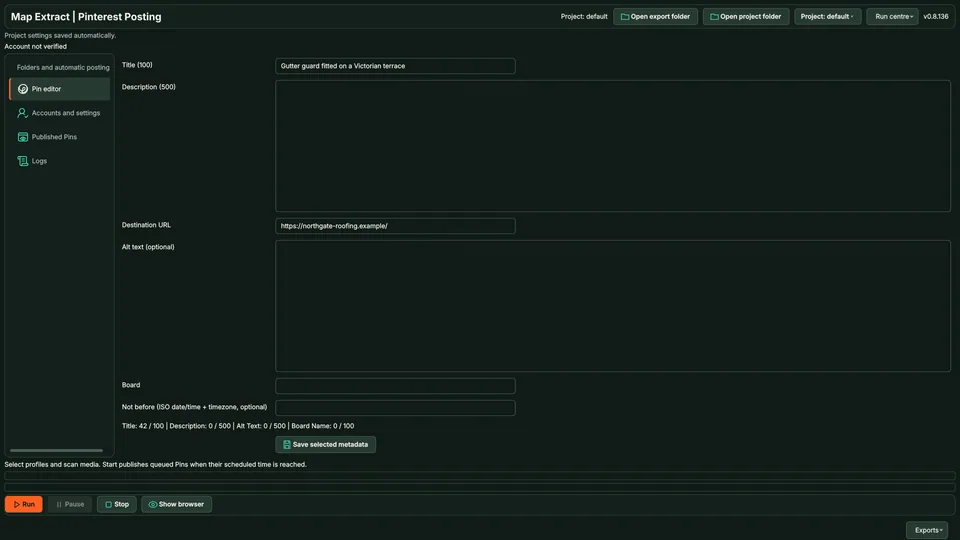
Pin editor with a sample Pin: Title (100), Description (500), Destination URL, optional Alt text, Board and optional Not before date / time with time zone. Save selected metadata. Step 4: Set the schedule
Set an optional Not before time with timezone. Review account limits and the approved media before starting.
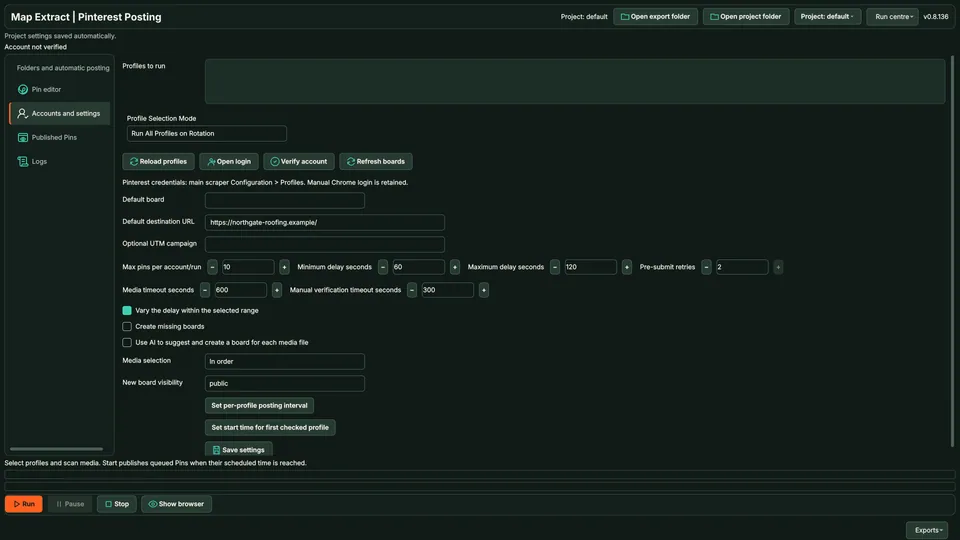
Accounts and settings: Run All Profiles on Rotation, Reload profiles, Open login, Verify account and Refresh boards. Manual Chrome login is retained. Default board, Default destination URL and optional UTM campaign. Step 5: Review Published Pins
Use Start or resume to publish eligible prepared Pins. Check the published Pin URL and board before retrying an uncertain result.
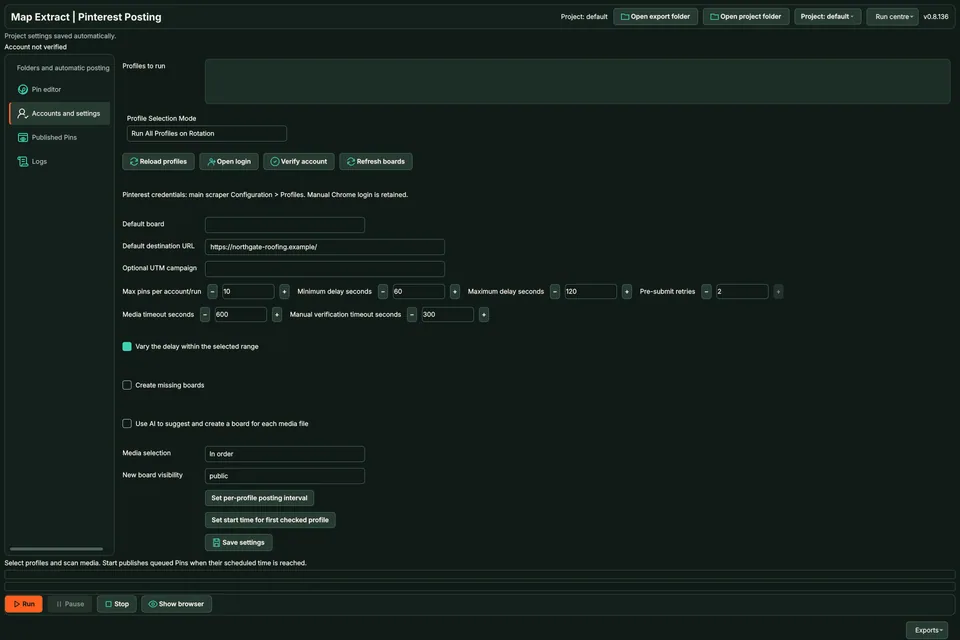
Maximum Pins per account per run 10; minimum delay 60 seconds; maximum delay 120 seconds; pre submit retries 2; media timeout 600 seconds; manual verification timeout 300 seconds. Vary the delay checked; Create missing boards unchecked.
Check the result
Pinterest Pins on the selected boards with destination links and recorded Pin URLs.
- Uses a dedicated Chrome profile; Google Chrome is expected to be installed.
- Scheduled Pins publish only while Map Extract is running.
- Defaults: 10 Pins per run, 60 to 120 second delays and up to 2 retries.
Read the responsible use guidance before you run this module on real data.
Troubleshooting
- The expected input or account is missing
- Recheck the prerequisites: Project; Authorised Pinterest session; Supported local media; Reviewed metadata.
- The output is incomplete or unavailable
- Image Pins are the most tested path. Check video Pins closely after publishing.
- The job was interrupted
- Stop before a side effect when possible. If an upload or publication may already have happened, inspect the platform and the saved result before retrying. Local fixture success does not prove the current platform accepted the item.
Questions
What setup does the Pinterest Uploader Tool require?
Image and video folders, optional CSV or JSON metadata and Pinterest profiles. Project. Authorised Pinterest session. Supported local media. Reviewed metadata.
How does the media queue work?
Browse local image and video folders, select a metadata file if needed and Scan folders. Generate metadata prepares Pin details. The queue exposes Profile, Media, Status, Board, Title and Checkpoint for review.
What can I edit for each Pin?
The Pin editor shows Title (100), Description (500), Destination URL, optional Alt text, Board and an optional Not before date and time with time zone. Use Save selected metadata after reviewing the fields.
How does Pinterest scheduling work here?
The interface states that Start publishes queued Pins when their scheduled time is reached. Set and review the optional Not before value, including its time zone, before Start / resume.
What account and pacing controls are shown?
Accounts settings provides profile selection, login verification, board refresh, defaults and an editable AI prompt. These are configuration values, not delivery promises.
How do I check a published Pin or retry an item?
Published Pins shows Profile, Board, Pin URL and Posted. Inspect Pinterest and the queue checkpoint before Retry selected if publication may already have happened. Record existing URL records an existing result; it is distinct from creating a new Pin.
Next steps
Follow along in the free demo
Install Map Extract on Windows and work through these steps with a small test project.