
How to scrape YouTube channels and videos
Follow the complete setup and run process for this module. You will start with keywords, channel criteria and authorised outreach settings, work through each control in order and finish with a qualified channel list with supporting source links.
Step 1: Open the standalone module
In the main application, select YouTube Discovery, then Open YouTube module. Open YouTube data folder locates the module storage. The separate window contains Campaign, Actions & limits, Timing & AI, Accounts, Jobs & progress and Logs.
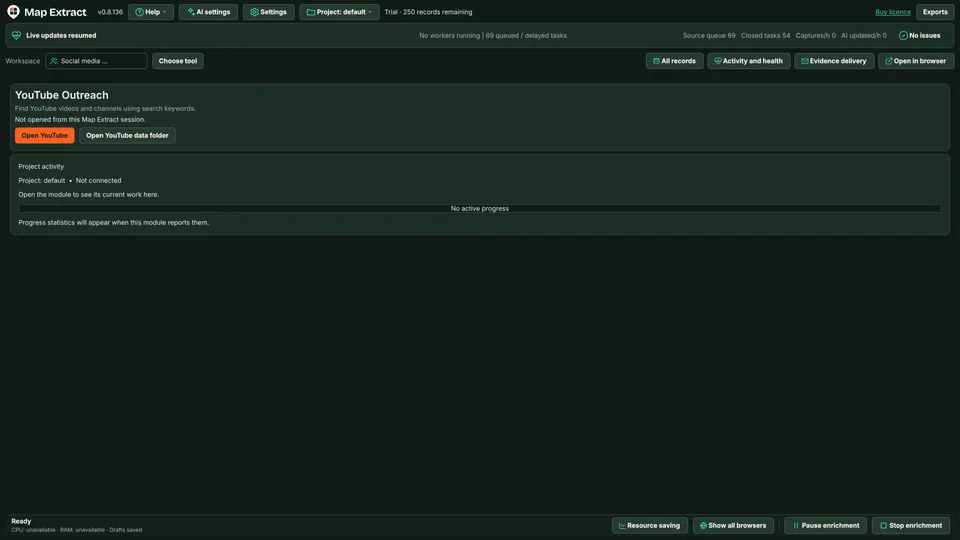
Figure 1. Main window launcher for YouTube Outreach, with Open YouTube data folder and project activity for the separate module. Step 2: Define the campaign
Enter keywords one per line. The example uses roofing keywords and Videos only. Use Insert macro with {keyword}, {channel_name} or {video_title}, or Paste comments into the spintax field. Set the AI comment generation prompt and select Generate comments with AI. Review the draft. Changes take effect when a new campaign starts. Prepare combined run is the visible preparation control. Start is separate.
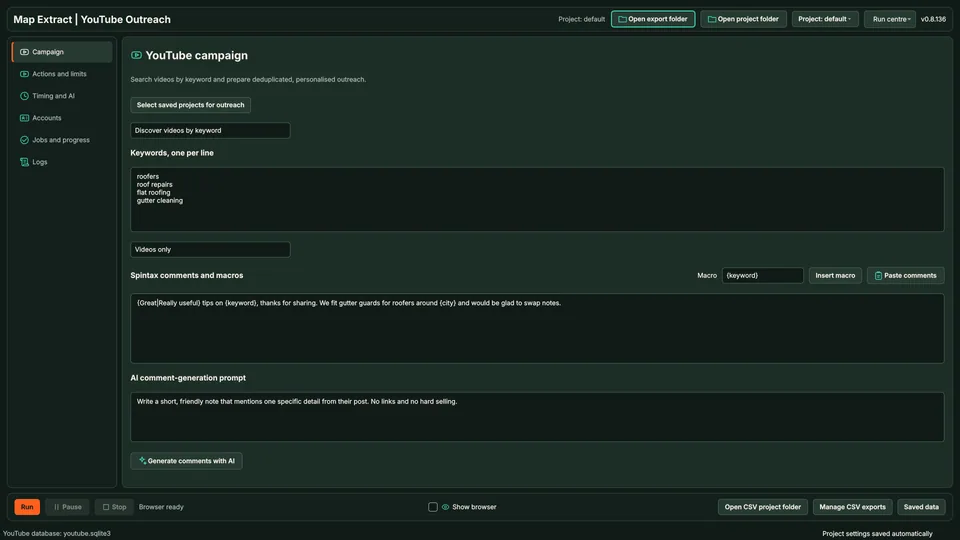
Figure 2. Campaign keywords, Videos only, spintax comments and macros. 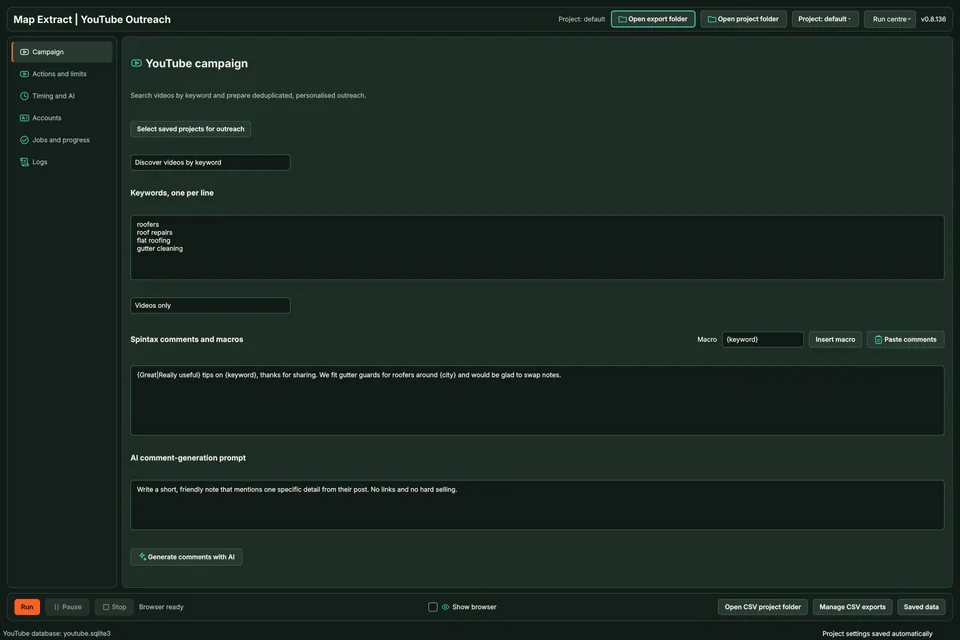
Figure 3. AI comment generation prompt and Generate comments with AI. Step 3: Review actions and limits
Review Like videos, Post comments and Subscribe to channels separately. Set daily caps, the unique comment interval and repeat channel rules. Set minimum video views, likes and channel subscribers. Limit results per keyword. Title or description must contain accepts one phrase per line and requires at least one match. An empty field accepts all titles and descriptions.
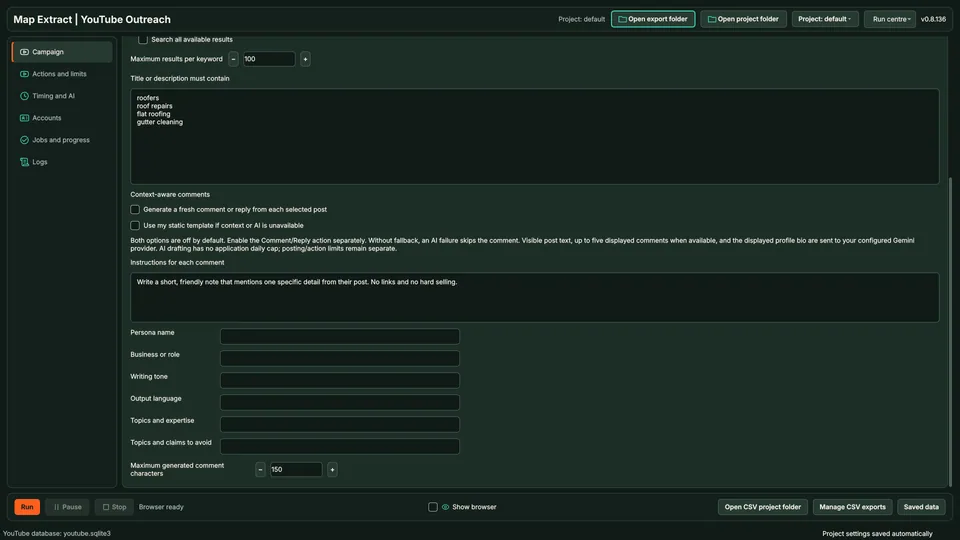
Figure 4. Result limits and title or description filters. Step 4: Set timing and AI
Configure video load, action, comment, like and subscribe delays, plus Maximum ad wait. Review muted playback and Between job playback. Enable AI rewrite is optional. Inspect generated wording rather than assuming every variant is unique.
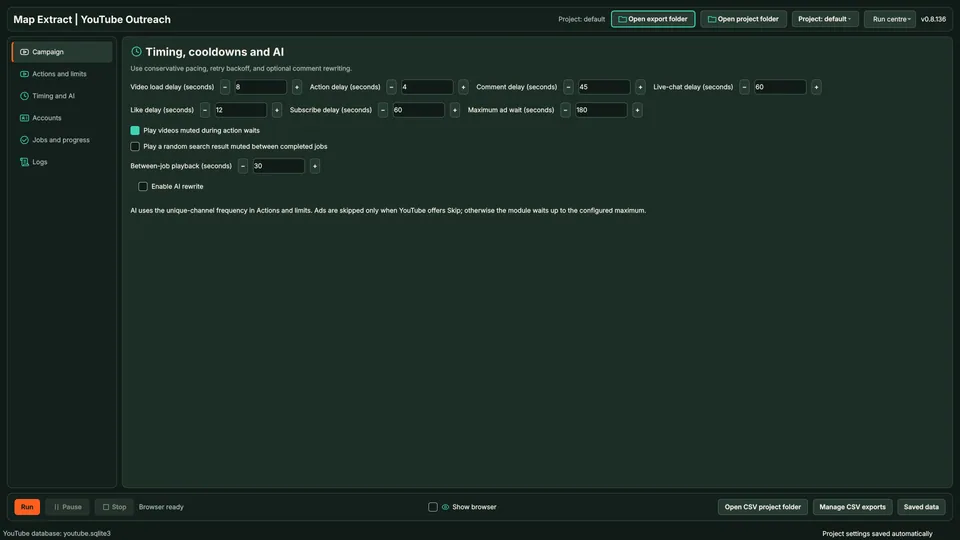
Figure 5. Timing, cooldowns and optional AI rewrite. Step 5: Verify the global identity
Accounts uses the global profile selected in Map Extract settings. YouTube cookies are copied into the isolated browser store. Manage credentials and rotation in the main software. Rotation switches the complete identity bundle. Inspect Saved cookies verify login or No YouTube login configured states. Use Show all available accounts, Refresh accounts and keys, and Open sign in / prefill saved login.
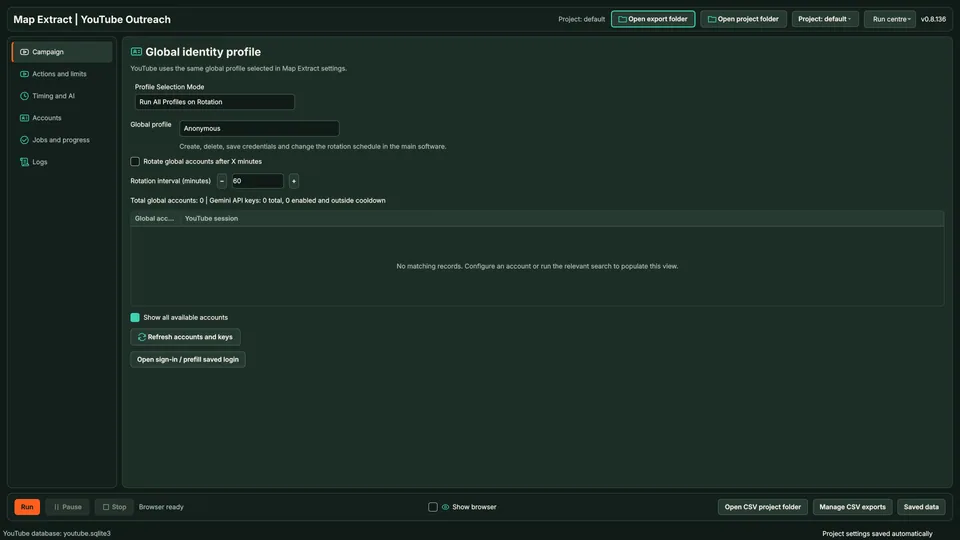
Figure 6. Global identity profile: Anonymous selected, rotation unchecked with a 60 minute interval, and no global accounts or Gemini keys in the demo project. 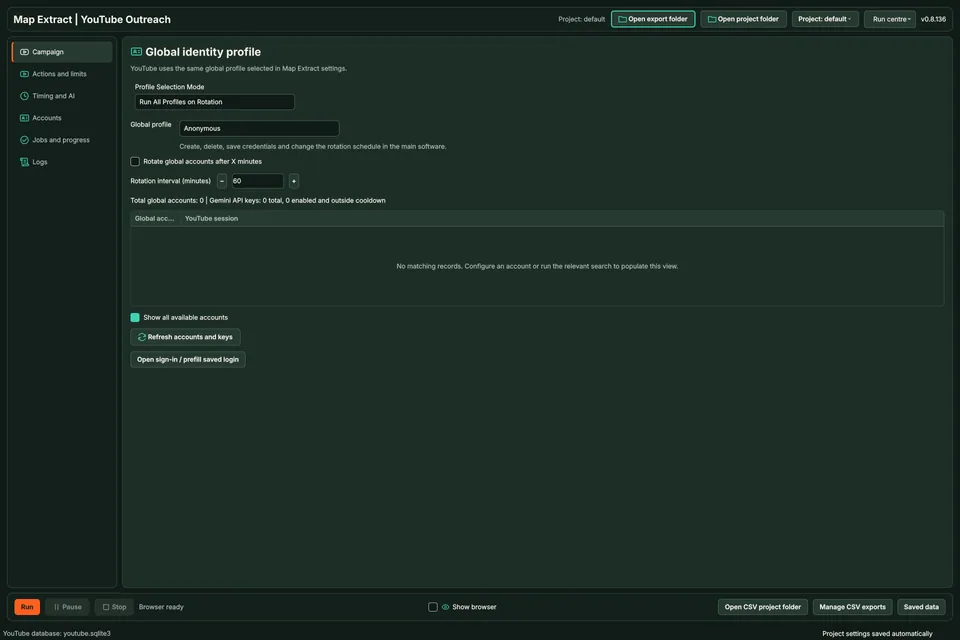
Figure 7. Show all available accounts, Refresh accounts and keys and Open sign in / prefill saved login. The demo project has no saved accounts. Step 6: Review jobs and progress
Read Scraped videos & channel results. Check video and channel URLs, descriptions, subscriber counts, views, likes, comments, keywords and scraped dates. Select Refresh results. This table records discovery evidence from the YouTube module only.
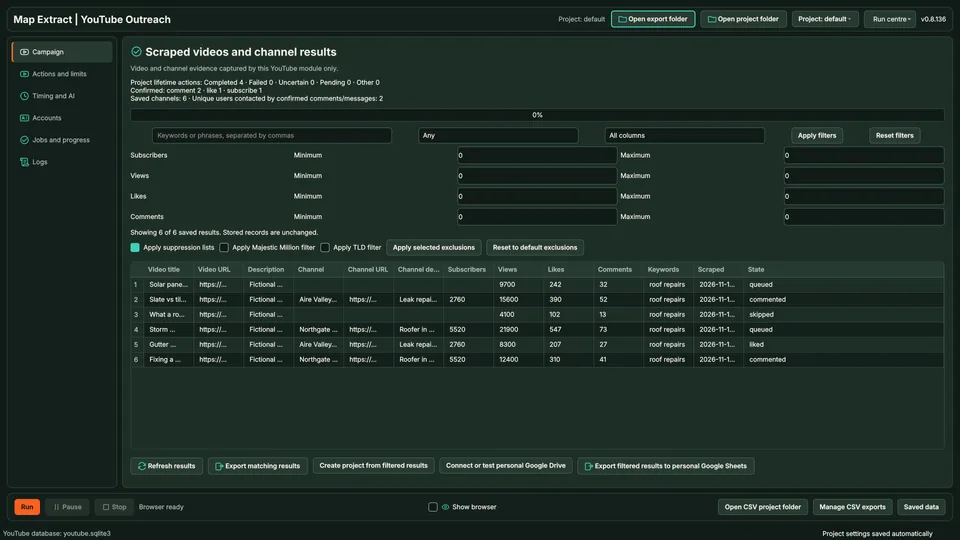
Figure 8. Scraped videos and channel results on fictional sample channels. These are not real metrics or completed outreach evidence. Step 7: Inspect interaction logs
Search website, stage or message. Filter All severities and review Auto scroll. Use Copy selected, Copy all or Export logs. The table records Time, Severity, Website, Stage and Message. Select an event to inspect redacted details.
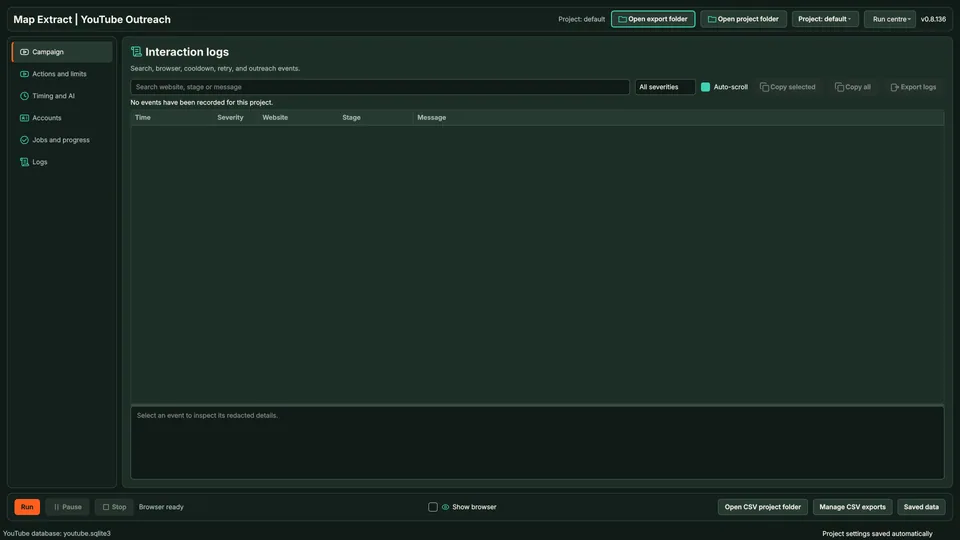
Figure 9. Interaction logs with search, severity, copy and export controls. No events are recorded in this captured view.
Check the result
Video and channel lead generation with source links and available audience metrics.
- Scraping only is on by default. Actions run only when you enable them.
- Third-party platforms may restrict data collection or automated actions. Before running a workflow, check the platform's rules and make sure you have permission for the actions you configure. Platforms can restrict or suspend accounts.
- Daily caps and cooldowns reduce risk; they cannot prevent platform action against an account.
Read the responsible use guidance and the anti-spam policy before you run this module on real data.
Troubleshooting
- The expected input or account is missing
- Recheck the prerequisites: Project; Compatible global browser profile; Authorised YouTube session.
- The output is incomplete or unavailable
- YouTube production browser engagement remains incomplete. Do not use the visible controls as evidence of working live engagement.
- The job was interrupted
- Use the module Pause/Stop controls for supported runs and inspect the saved checkpoint. Account challenges require user attention. Interrupted or ambiguous actions require review before retrying; a recorded attempt is not a confirmed platform outcome.
Questions
What is the standalone YouTube module?
It is a separate application with its own process, browser runtime, cookie store, settings, logs, checkpoints and youtube.sqlite3 database.
Does YouTube Outreach Automation write to the business scraper database?
The isolated module never writes its interactions to the business scraper database.
How do spintax and macros personalise comments?
Insert macro adds {keyword}, {channel_name} or {video_title} to a template. The AI generation prompt prepares draft wording. Review each draft for relevance and duplication.
Do daily limits keep YouTube accounts safe?
Daily caps, repeat channel rules and delays restrict configured activity. They do not promise account safety. Live engagement remains incomplete.
What is global identity profile rotation?
The module uses the profile selected in Map Extract settings and copies its YouTube cookies into isolated storage. Rotation switches the complete identity bundle after the configured interval. Verify the session before use.
How do interaction logs support review?
Search and severity filters help inspect recorded browser, cooldown, retry and outreach events. Copy or export logs for review.
Next steps
Follow along in the free demo
Install Map Extract on Windows and work through these steps with a small test project.